Comment Template
The Comment Template menu allows user to create, modify and delete comment templates. The templates created here are displayed in the Template drop-down list Comment tab of the Create Account screen.
Breakpoint: 170410 - Comment Template (Engineering - Groups)
Perform the following steps to create a comment template:
Navigate to Settings à Template Setup à Comment Template.
Click Create Comment Template.
Refer to the following table and fill in the details:
|
Field |
Description |
|---|---|
|
Comment Template Code |
A unique code to represent the comment template. Up to 8 alphanumeric characters are supported. |
|
List Order |
The position in which the template must appear in the Template drop-down list. |
|
Active |
When enabled, indicates that the comment template is active. If not, the template is not listed in the Template drop-down list. |
|
Template Type |
Select a preferred template type from the Template Type drop-down list. |
|
Default Template |
When enabled, the template is set as the default template. |
|
Prompt To Apply Default Template |
When enabled, Versa prompts the user if the default template must be applied whenever a user is about to add a comment to a booking or a guest reservation. |
|
Comment |
The comment to be populated when the template is selected. |
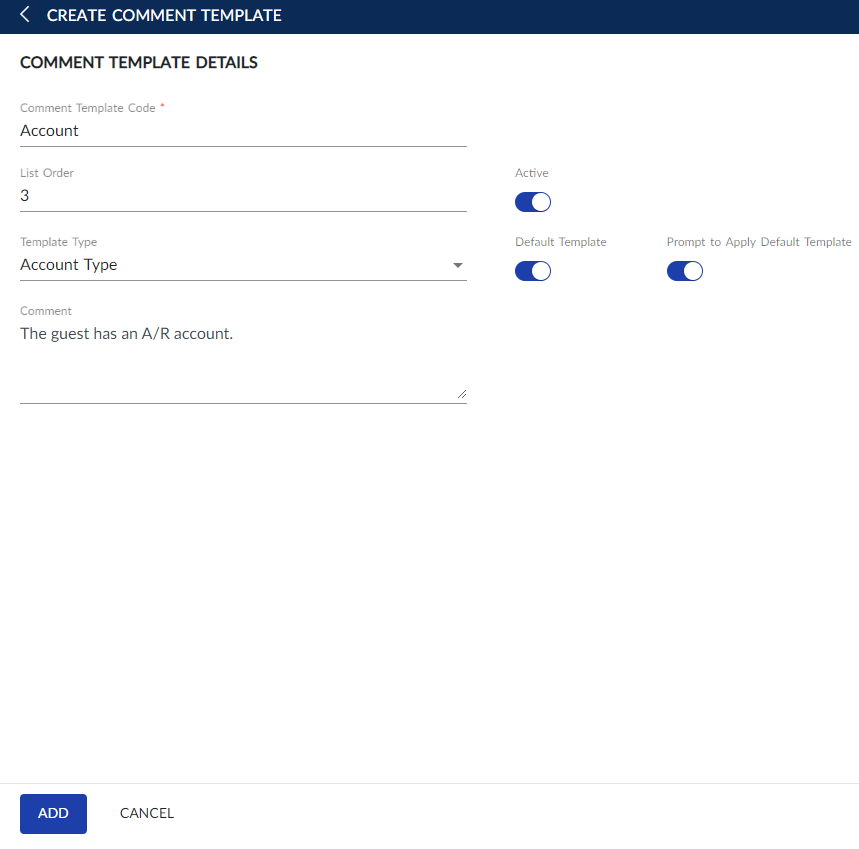
Click Save.
Users can also perform the following actions in the Component Template screen:
-
Modify a component template using the Edit icon.
-
Delete a component template using the Delete icon. A component template cannot be deleted when in use.
-
Drag a component template to change positions within the grid using the Drag icon.